Akala ko dati, para maging productive, kailangan lang ng mas maraming apps, lists, at dashboards.
Pero sa totoo lang – mas magulo pala. 😅
Nung sinimulan ko ‘tong Notion Series, literal na sabog freelancer ako. LOL
Tabs dito, Google Sheet doon, tapos mga deadline kung saan-saan nakakalat.
Ang ending? Ubos energy, wala pa ring peace of mind.
Ngayon, five parts later, I finally built a system that doesn’t just keep me productive – it keeps me at peace.
Contents
💭 The Turning Point
The biggest realization?
I didn’t need to work harder – kailangan ko lang makita nang malinaw kung ano talaga ’yung ginagawa ko.
Notion didn’t give me superpowers.
It simply helped me organize the chaos I already had — one block at a time.
At eto na siya, finally:
- ✅ Task Manager — WHAT to do
- 🗂️ Client Dashboard — WHO to do it for
- 📅 Weekly Focus View — WHEN to do it
Three pages. Pero parang 48 years ko inayos. 😅
🧱 Step 1: I-Connect si Task Manager at si Client Dashboard
This is where the magic happens — yung “ahh kaya pala useful si Notion” moment. 😅
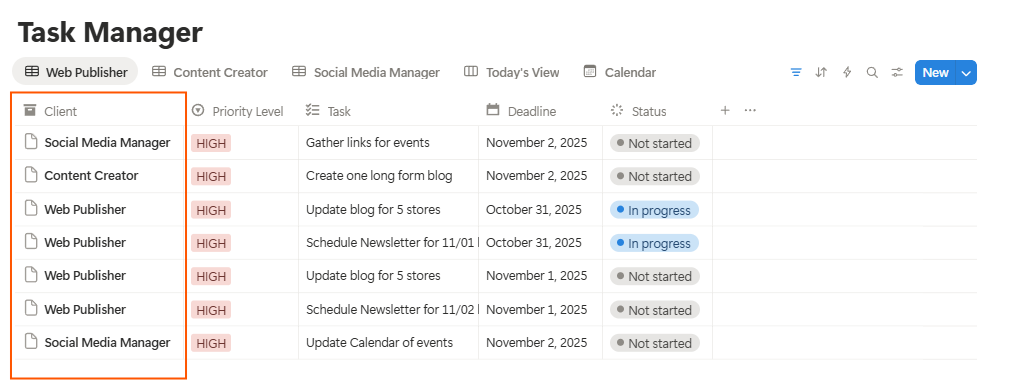
Open your Task Manager
- Go to the page you made in Part 3.
- Make sure every task has a column for “Client.”
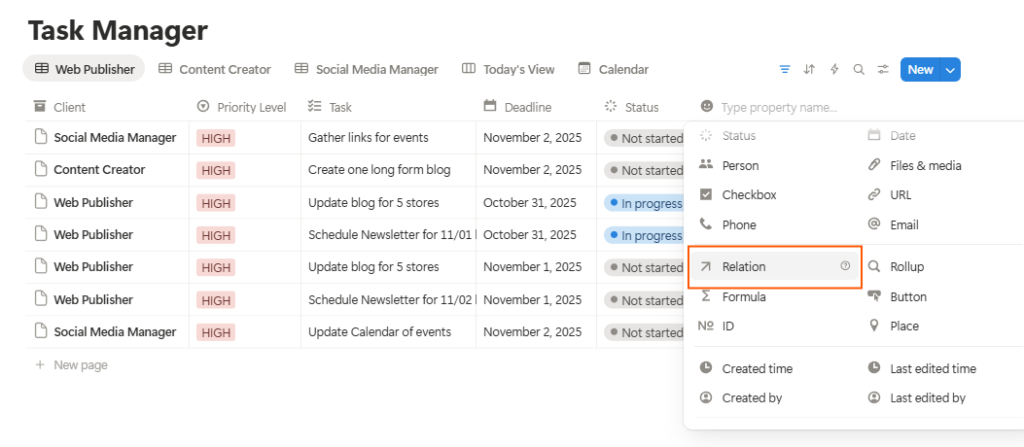
Add the “Relation” Property
- Click the “+” sign on your database → choose Relation.
- Then select your Client Dashboard as the related database.
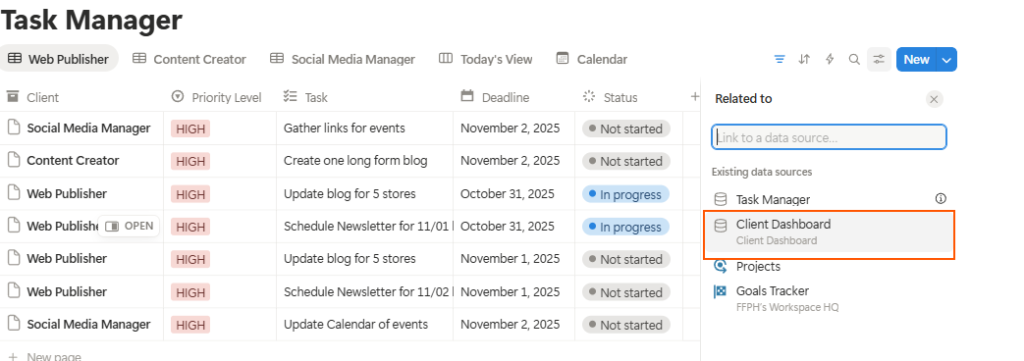
- You’ll now see a new property where you can assign which client each task belongs to.
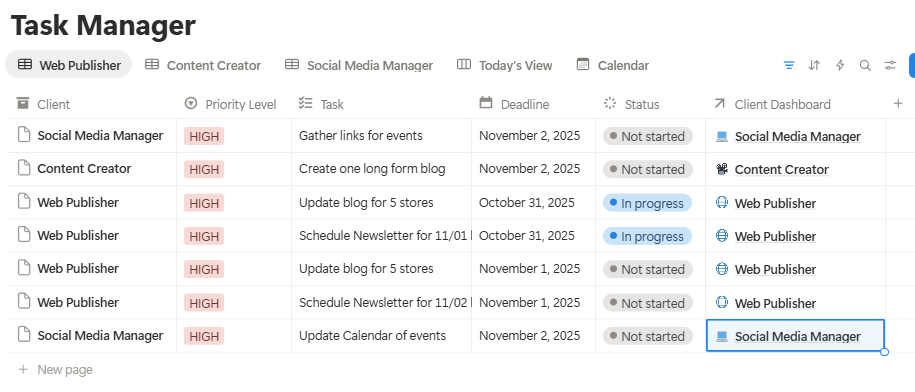
Do it both ways (optional but powerful)
- Go to your Client Dashboard, add another Relation → connect it back to your Task Manager.
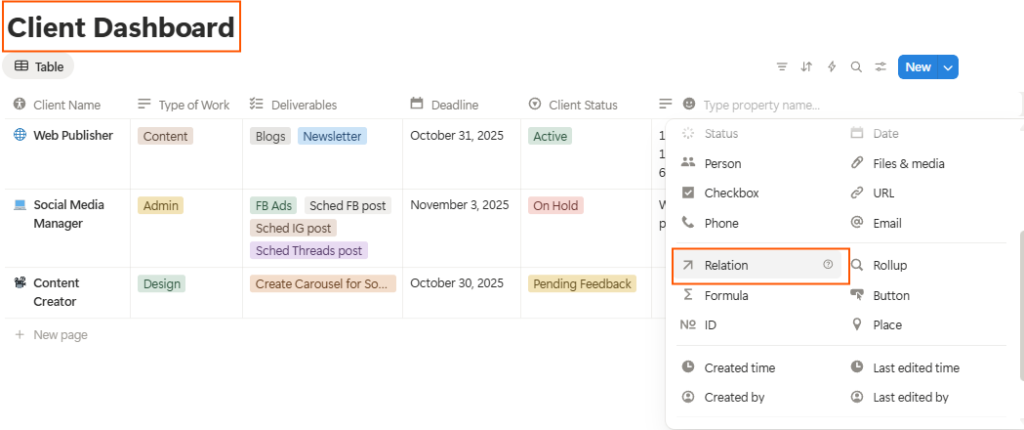
- Now each client card automatically shows all tasks related to them.
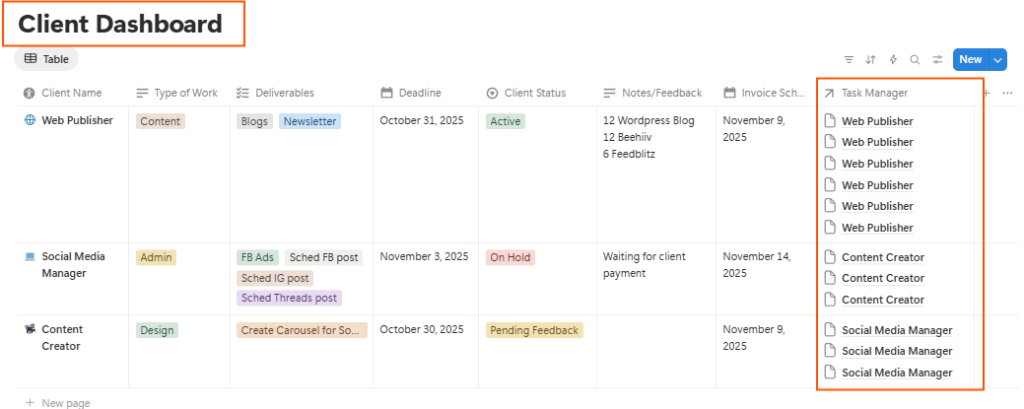
Add filters for clarity
- Filter out completed tasks.
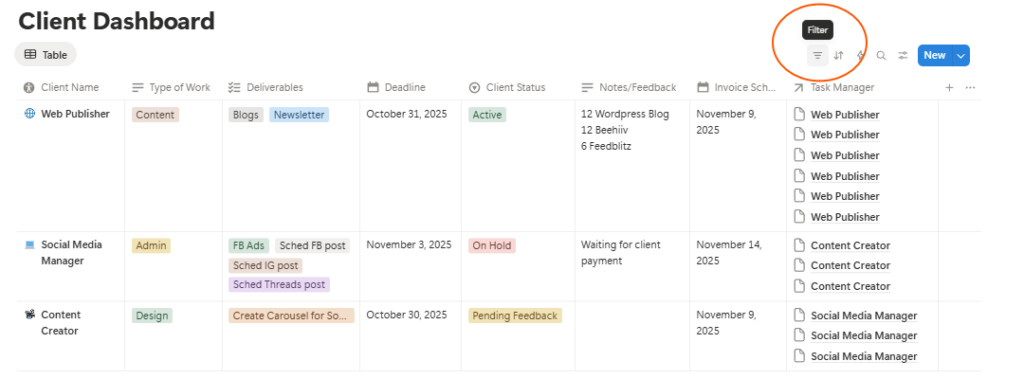
- Optional: Add a “This Week” filter para makikita mo lang mga dapat gawin soon.
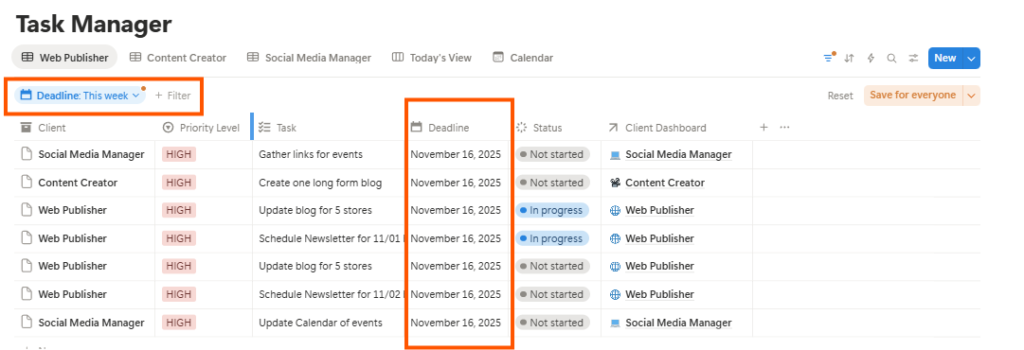
Result:
Every time you open your Client Dashboard, you’ll see exactly which deliverables are pending per client.
Walang tab-hopping. Walang guessing game.
💡 Pro tip: Rename the Relation property as “📁 Projects” or “Tasks” para mas visually clean sa dashboard mo.
📅 Step 2: Gawa tayo ng “Weekly Focus” Page
Now, ito ‘yung secret weapon para di mo na kailangang isipin, “Saan nga ba ako magsisimula ngayon?”
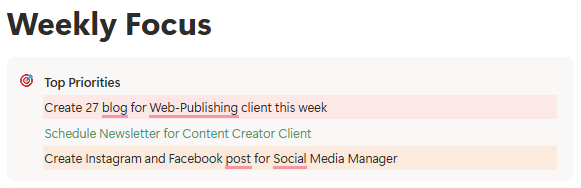
Create a new page → title it Weekly Focus.
Add three sections (you can use headers or callouts):
- 🎯 Top Priorities — lagay mo lang 3 main goals this week.
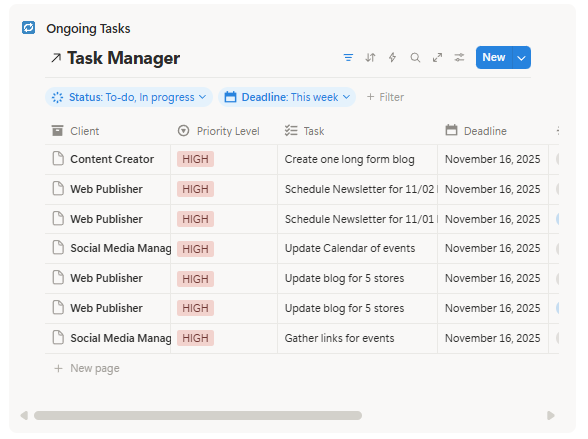
- 🔁 Ongoing Tasks — type “/linked view” → connect to your Task Manager.
- Add a filter: Status is not Done + Deadline is within this week.
- 🪞 Friday Reflection — just add two text blocks:
- “What worked this week?”
- “What drained my energy?”

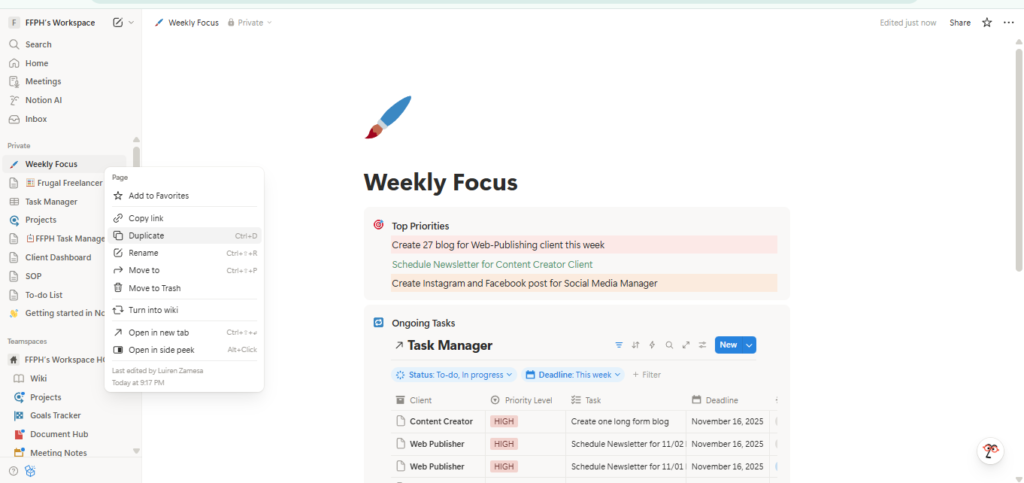
Make it reusable
- Click the 3 dots (•••) → “Duplicate.”
- Use the copy every Monday so may fresh template ka for the week.
💡 Optional aesthetic: Add a quote at the top like,
“Progress, not perfection.”
Because let’s be honest, kailangan natin ng daily reminder. 😂
🧠 Step 3: Build Your Daily Routine Inside Notion
Here’s the part na sobrang simple pero game changer:
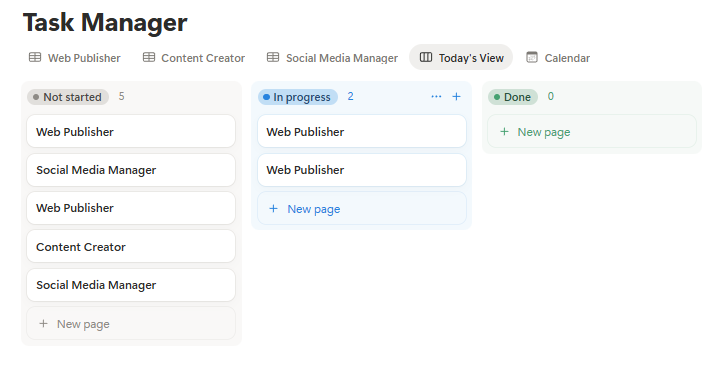
Create a “Today” View in your Task Manager.
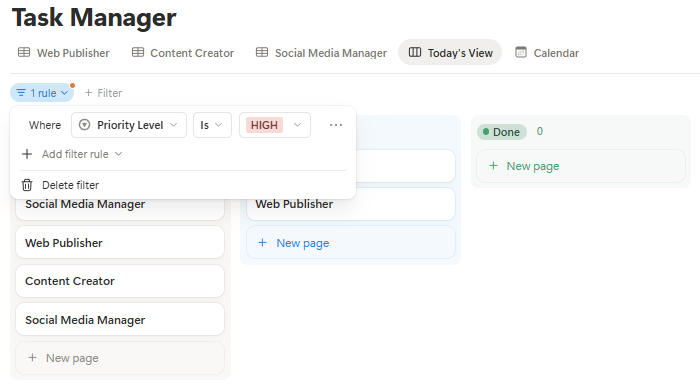
- Add filter: Deadline is today AND Status is not Done.
- Optional: Add “Sort by Priority” if you have that property.
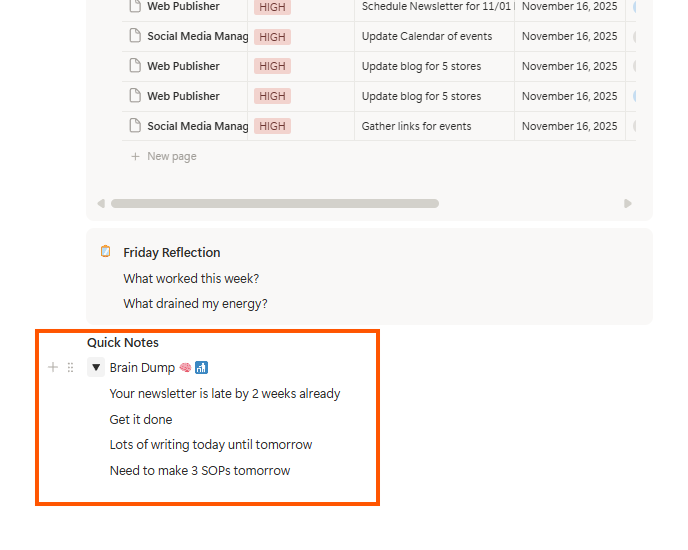
Add a “Quick Notes” section at the bottom of your Focus page.
- Type “/toggle” → title it Brain Dump 🧠
- Lagay mo lahat ng random thoughts or tasks para di ka mawala sa flow.
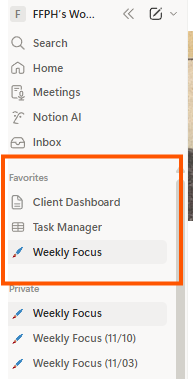
- Right-click → “Add to Favorites.”
- I-favorite mo lang ’yung tatlong pages:
- Dashboard
- Task Manager
- Weekly Focus
Daily rhythm example:
- ☕ Morning: open Weekly Focus → check top priorities
- 🧾 Midday: work from Today View
- 🌙 End of day: update Reflection section
After a few days, mapapansin mong automatic na siya.
Hindi mo na kailangang isipin kung saan ka magsisimula – kasi system mo na mismo nagsasabi.
🪞 What You’ll Notice
By now, mararamdaman mo na ’yung shift. Hindi na siya tungkol sa pagiging “aesthetic sa Notion” – it’s about creating mental space.
Less time organizing → more time actually working.
Less panic → more flow.
At best of all, it’s yours.
Hindi galing sa template shop, kundi galing sa experience mo mismo.
📦 Try My Final Workflow Setup
You can duplicate my full setup here – Task Manager + Client Dashboard + Weekly Focus View.
This version already includes templates, sample filters, and prompts so you can tweak it for your own freelance routine.
If you want the guided version — with workbook prompts, setup checklist, and system map —
it’s available in the Pay-What-You-Can Notion Starter Kit.
🧭 Before You Go
You don’t need a fancy workspace to feel in control.
You just need one that makes sense for you.
Build systems that serve you – not stress you.
And if you ever forget where to start, remember: clarity doesn’t come from doing more.
It comes from doing it your way.
💌 Get new tools, templates, and freelancing stories every Monday from Frugal Freelancer PH.
Join the newsletter →
📅 About the Series
This is the final part of The Frugal Freelancer’s Notion Series — a guide for Filipino freelancers who want to turn chaos into calm, one block at a time.
Thank you for learning alongside me.
Now, go build your version of peace. 🪞✨
Disclaimer: Please note that some of the links on this blog may be affiliate links, meaning I may earn a small commission if you make a purchase or take an action through those links. This comes at no extra cost to you. I only recommend products or services that I personally trust and believe will add value to my readers. Thank you for supporting my blog!
No Responses