When you’re a freelancer, “organized chaos” is practically a job title.
You’ve got one client on Slack, another on Google Sheets, and one sending revisions through Facebook Messenger. Somewhere in that digital circus, your sanity’s hanging by a thread.
And if you’re managing multiple clients—which, according to Payoneer’s 2024 data, nearly 70% of Southeast Asian freelancers are—you know the feeling. You’re not disorganized. You’re just spread too thin.
So this week, I built something that saved me from tab-hopping purgatory:
a Client Dashboard inside Notion that finally makes sense.
Contents
The “Wait, I Need Context” Moment
By now, you’ve probably built your own task manager (from Part 3).
It’s helping you keep track of deadlines – but what about context?
Clients aren’t just tasks. They have personalities, quirks, and recurring requests.
One prefers Markdown format, another wants everything in Google Docs, and the rest just send “quick updates” that turn into six new assignments.
I realized I didn’t just need a task tracker – I needed a client brain.
So I built one.
🧱 Step 1: Create Your Client Dashboard Page
Start fresh: Ctrl + N → Name it Client Dashboard.
Inside that page, build three simple but powerful sections:
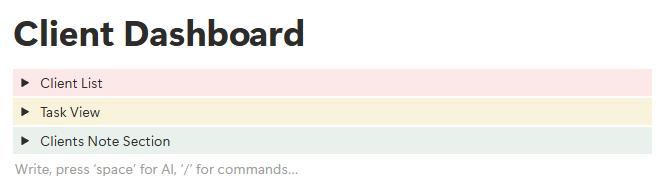
1. Client List (Database Table)
Columns:
- Client Name
- Type of Work (Content / Admin / Design)
- Deliverables
- Deadlines
- Status (Active / On Hold / Completed)
- Notes / Feedback
👉 This becomes your “home base” – one page where every client lives.
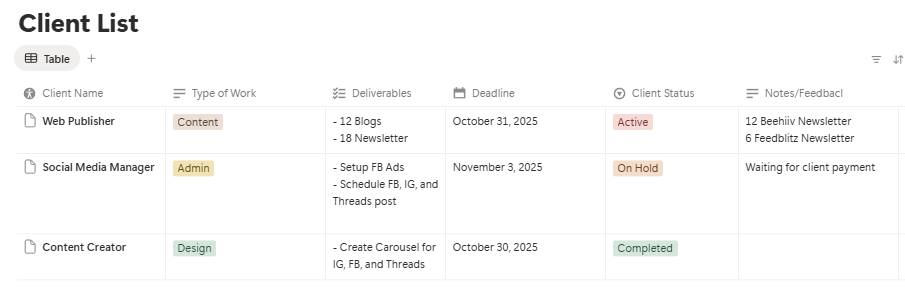
2. Linked Task View
Use Notion’s linked database feature to connect your existing Task Manager.
Then filter it:
Client = [Name] and Status ≠ Done
Now, when you click on a client, you only see their tasks.
It’s like giving every client their own private dashboard — without making 10 different pages.
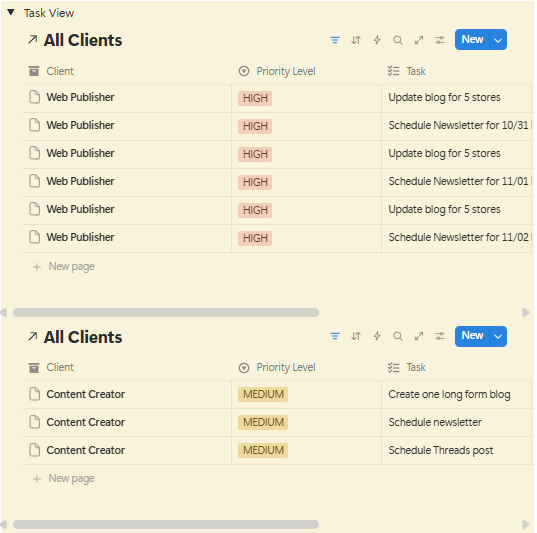
3. Client Notes Section (Toggle Blocks)
- Brand voice reminders
- File format preferences
- Contact schedule
- Recurring deliverables
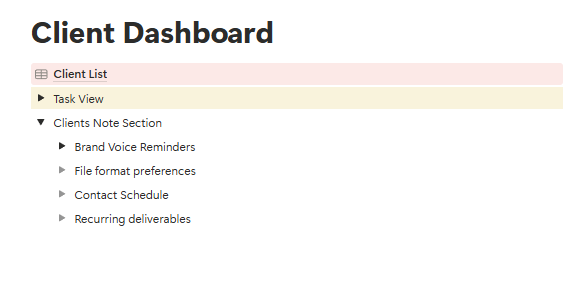
These toggles save you from re-reading chat threads just to recall a single instruction.
🗂️ Step 2: Add a “Status at a Glance” View
Here’s where your dashboard gets powerful.
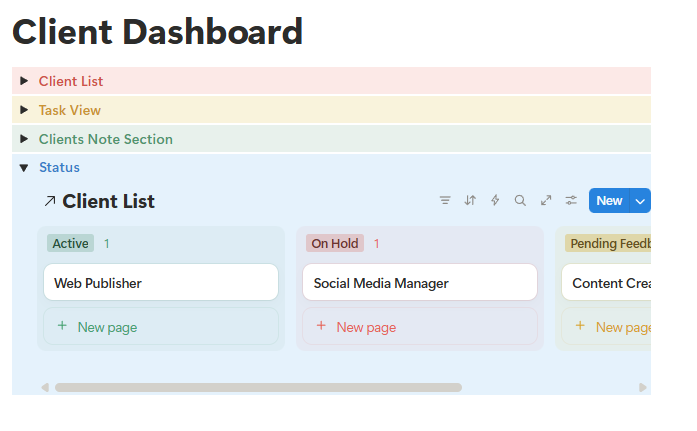
Create a Board View and group it by Status:
- 🟢 Active
- 🟡 Pending Feedback
- 🔴 On Hold
With one glance, you’ll know where every client stands.
No more opening five folders to figure out who’s waiting on what.
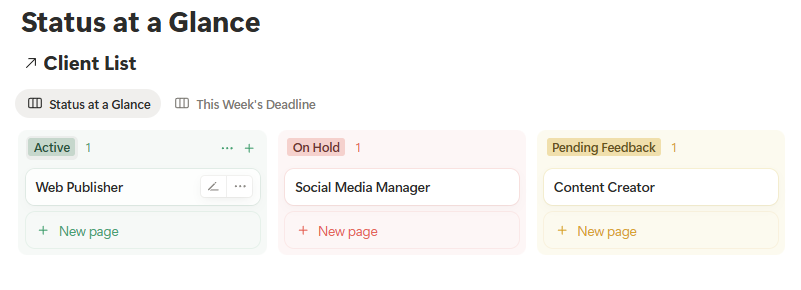
💡 Bonus Tip: Add a filter for “This Week’s Deadlines” so you can focus only on near-term deliverables.
✨ Step 3: Build Your Client Rhythm
Here’s what most freelancers forget – the goal isn’t to have a system, it’s to build a rhythm.
Every Monday, I open my Client Dashboard and:
- Scan the Status Board for pending work
- Check which clients have upcoming deadlines
- Review notes for tone and preferences
- Update deliverables directly from linked views
That’s it. 10 minutes.
My brain stays calm, and my clients get consistent output – no more “Wait, did I send that file already?” moments.
📈 Why This Works
When you remove clutter, you create confidence.
Notion doesn’t replace your client’s system – it builds your own.
According to Upwork’s 2023 Global Freelancer Report, freelancers who create personal project systems are 30% less likely to miss deadlines and more likely to retain clients long-term.
Because clarity isn’t just efficiency – it’s professionalism.
When you’re organized, clients feel it.
And they trust you more.
💡 Try My Setup
You can duplicate my Client Dashboard and customize it for your workflow:
👉 Duplicate My Notion Client Dashboard →
It’s the same setup I use to manage multiple brands without losing track- simple, functional, and built for real work, not aesthetics.
💬 Pro-tip: personalize it with your brand colors or a “Client Wins” section – small touches that make your workspace yours.
💬 Final Thoughts
Freelancers don’t need more tools.
We need tools that make sense.
This dashboard taught me something powerful:
The moment you stop building systems to impress your client – and start building them to support yourself, everything changes.
Because you can’t deliver your best work if your brain is always in survival mode.
📅 Coming Next Monday…
We’re wrapping up this series with:
Part 5: From Chaos to Clarity — My Final Workflow Setup (Free Template & Mini Guide)
It’s where I combine everything (Task Manager, Client Dashboard, and Weekly Focus) into one clean, calm system that actually sticks.
📦 About the Series
This post is part of The Frugal VA’s Notion Series — a step-by-step guide for beginner freelancers and VAs who want to build simple systems, organize client tasks, and finally say goodbye to the sabog life. Catch new posts every Monday!
🧭 Next Step:
Simplify your freelance life, one Notion block at a time.
Subscribe to Frugal Freelancer PH and get the next Notion guide straight to your inbox.
💌 Join here →
No Responses